How to Set Up a Bike Computer in Under 10 Minutes
Before mounting, power on the computer outdoors, pair your ANT+ or Bluetooth sensors, and confirm speed, cadence, heart-rate, and power values.
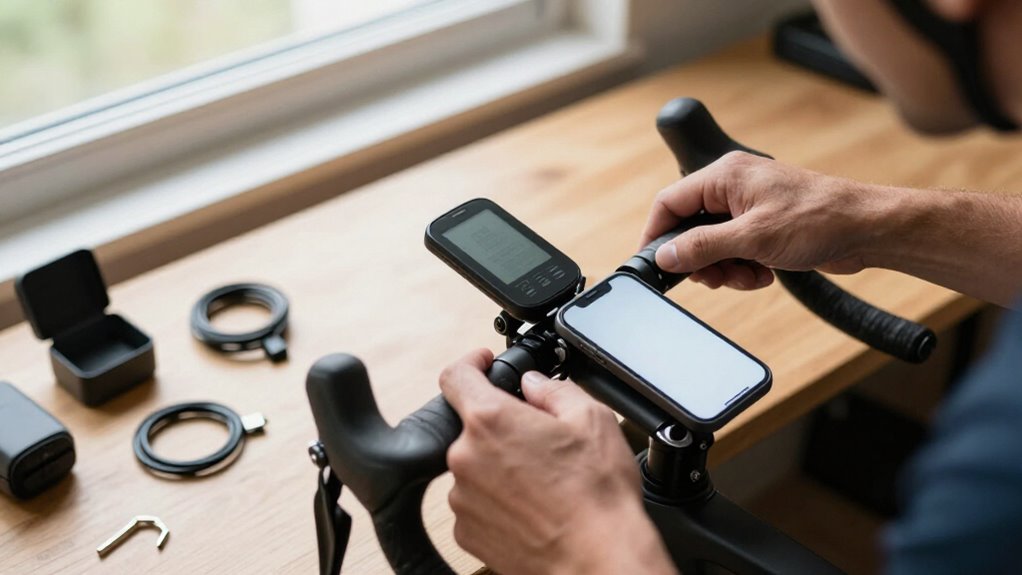
Use a mount made for your model, clean the bar, fit the correct shim, and tighten evenly without overtightening.
Set wheel circumference from a measured rollout, then choose units, time zone, and rider profile.
Acquire GPS, verify smooth live speed, save rides before syncing, and use the following steps to troubleshoot more confidently and safely.
Pair Sensors Before Mounting
Before you tighten the mount, power on the bike computer and let its GPS acquire a signal outdoors, then pair your ANT+ or Bluetooth speed, cadence, heart-rate, and power sensors. Confirm sensor IDs and values on the display before installing the head unit. Squeeze brake levers, inspect the bike, and spin the wheel to verify smooth, consistent speed detection.
Rotate cranks to check cadence and, if fitted, power updates. Wear the heart-rate strap and confirm a reading. Don’t ride while values drop out, freeze, or reconnect; correct alignment and repeat pairing first. Replace a sensor battery if its display indication is dim or data remain unstable, then pair it again. This pre-mount test prevents bad first-ride records and lets you address faults without distraction before you depart.
Confirm Compatible Mount Hardware
With the computer and sensors verified, match the mount to both your head unit’s interface and your bike’s cockpit dimensions.
- Inspect the computer’s engagement pattern: Garmin-style four-tab quarter-turn, Wahoo keyed, or a proprietary round disc. Confirm the mount explicitly supports your exact model; don’t assume an adapter is included.
- Measure handlebar or extension diameter—typically 25.4, 31.8, or 35 mm—and compare it with the mount’s clamp range, width, and cable-clearance specification.
- Check positioning before tightening: the display must lock positively, sit horizontal where required, remain readable, and clear brake hoses, shift cables, and controls. Verify accessory tabs support any planned light or camera. Use manufacturer torque guidance and the correct shim; overtightening can damage lightweight bars. Carry a Torx or Allen set for adjustments.
Step 1: Clean the Handlebar Mounting Surface
Clean the selected stem or handlebar section thoroughly with a dry, lint-free cloth so the mount’s rubber pad, straps, or zip ties can grip a clean surface. Remove dust, mud, oil, and moisture from the area; contamination can let the mount slip or vibrate. If your mount includes a rubber pad, place it between the mount and bar or stem. It damps vibration and helps keep GPS and speed readings stable.
Center the mount in front of you without obstructing brake or shifter cables, lights, or accessories. Tighten straps or zip ties evenly until the mount sits flush; don’t over-tighten them. Gently press and shake it to check for rocking. Finally, pull upward on the mounted computer to confirm it locks securely before riding.
Step 2: Set Wheel Circumference
For accurate speed and distance readings, set the computer’s wheel circumference to match your actual tire rollout. Inflate the tire to your normal riding pressure before measuring. Mark the tire’s ground-contact point and the pavement, then roll the bike forward exactly one wheel revolution on a level, clear surface.
Measure the mark-to-mark distance in millimeters and enter it in the wheel-circumference menu.
If you need a baseline, use 2105 mm for a 700×25C tire or 2136 mm for 700×28C, then verify it. Ride a known distance or compare the recorded distance with reliable GPS mapping. If readings remain consistently high or low, adjust the value in 5–10 mm increments.
Recheck it after changing tire size or pressure. Use a clear surface; secure the bike.
Step 3: Create Your Rider Profile
Start by opening Settings, often by holding the right button for about two seconds, and select your language, preferred units (km/h or mph), and correct time zone. These selections ensure that speed, distance, clock displays, and exported ride summaries use consistent formats.
Next, open the rider-profile screen and enter each requested personal detail accurately. Your computer uses this information to calculate and present performance metrics consistently across rides, so review every entry before saving.
Enable the optional backlight if you expect low-light conditions. Set brightness only high enough to read the display without glare or unnecessary battery drain. Confirm the selected profile remains active, then return to the ride screen. Check that its units, clock, and data layout are legible before riding on roads.
Step 4: Acquire a GPS Signal
With your rider profile saved, take the bike computer outdoors to an open area with a clear view of the sky, away from tall buildings, dense trees, and other obstructions. Power it on while it remains securely mounted on the stem or handlebar; don’t hold it in your hand or start riding yet.
Wait for the GPS status indicator to confirm a reliable position before recording your ride. Initial acquisition can take several minutes, so give the unit time if tracking appears unstable.
Once you move, check that speed updates continuously and distance accumulates correctly. Verify that ride time records and that average speed changes plausibly. If values jump, freeze, or look unreasonable, stop in a safe location and wait for a stronger lock.
Step 5: Calibrate the Elevation Reading
Before you calibrate elevation, confirm the computer uses the correct units and time zone. In an open outdoor area, away from buildings, start a ride or GPS test and wait for a stable satellite fix. This establishes a dependable elevation baseline. Don’t calibrate while moving or while GPS reception is unstable; stop in a safe location clear of traffic.
Open the elevation settings and select Calibrate Elevation or Set Elevation, if your model provides it. Compare the displayed value with a trusted map, app, or marked elevation point. Enter the reference elevation in feet or meters to match your selected units, then save or confirm the change. Accurate calibration improves recorded climbing and grade-coloring data. If readings remain inaccurate, verify GPS lock before correcting.
Step 6: Trim Excess Zip-Tie Tails
Once the computer locks securely into its mount without resistance, cut each zip-tie tail to about 1–2 mm using sharp cutters. Confirm the ties hold the stem or handlebar bracket snugly before cutting; overtightened ties can misalign the bracket and force rework.
If you’re using rubber pads or spacers, trim the tails only after tightening and checking their alignment. Position the cutter jaws squarely against each tie head, then make one clean cut-and-blend pass. Inspect every cut end for sharp burrs and remove them carefully. Leave the short tails facing away from brake and shift cables, hydraulic hoses, and light wiring. Check clearance along the routed ties by turning the handlebars fully each direction. Smooth ends reduce glove snags and cable abrasion during rides.
Verify Live Speed Display
Power on the bike computer, allow it to acquire a GPS signal, and confirm that the live speed field rises smoothly from 0 as you begin moving. Ride in an open area with clear satellite view, and watch the reading as you accelerate, decelerate, and turn. It should change realistically without lingering at zero.
If your computer uses wheel-based speed, check the sensor connection is secure and speed responds immediately when the wheel turns. Verify selected units in the menu: km/h or mph must match expectations. Check only where you can safely ride.
A dim or unstable display, or erratic speed, can indicate a weak CR2032 battery. Replace it correctly with the + side up before retesting live speed again after a safe test roll outdoors.
Frozen Display: Force Restart
If the display freezes or stops responding, force-restart the bike computer by holding its right-side or power button until it shuts down and restarts. Keep the bike stationary and wait until the display fully reboots to its normal GPS or ride screens before riding.
| Check | Action |
|---|---|
| Still frozen | Remove CR2032; wait 10 seconds; reinstall with + side up. |
| Dim or unstable | Fit a fresh CR2032 battery. |
After restart, take the computer outdoors and allow satellite acquisition; GPS information won’t appear immediately. Don’t begin a ride until speed and distance tracking return. If a fresh battery doesn’t correct the fault, stop troubleshooting on the road and consult your model’s manual. Never open a rechargeable unit or substitute a different battery type. Use only the specified replacement cell.
Sync Ride Data to App
Before your first upload, let the GPS computer acquire satellites outdoors, then pair it with its companion app over Bluetooth (and Wi‑Fi, when supported). In the app, confirm the device, select km/h or mph, and set the correct time zone. These settings keep timestamps, speed, and distance consistent in each ride summary.
Before riding, verify that heart-rate, speed, and cadence sensors are connected through their supported Bluetooth or ANT+ links; otherwise, the uploaded activity may omit metrics. After the ride, stop and save the activity on the computer. Don’t merely power it off, because unsaved data can’t sync. If the ride doesn’t appear, initiate manual sync in the app. Check the computer’s battery: a dim or unstable CR2032-powered display indicates a replacement is needed.
Conclusion
With sensors paired, hardware secured, and settings verified, you’re ready to ride confidently. Confirm the computer shows live speed before leaving, and recheck zip ties, mount engagement, and wheel circumference after your first short test.
If the display freezes, force-restart it only when stopped safely. Sync the completed test ride to confirm data transfer.
Don’t adjust the device while moving; stop in a safe location before troubleshooting, charging, or changing settings. Keep your attention ahead.